I Wanted Hassle-Free Cybersecurity: Here’s the Hands-Off Routine That Keeps Me Protected 24/7
I wanted strong cybersecurity without spending hours managing it. That led me to create a simple, hands-off routine that runs quietly in the background. In this guide, I explain what “hands-off cybersecurity” means and share my 24/7 protection routine. I also introduce IObit Malware Fighter, a free antimalware tool, provide a simple step-by-step guide, and explain the other security settings I automate to keep my PC protected with minimal effort.
What “Hands-Off Cybersecurity” Actually Means
Hands-off cybersecurity uses automation to manage routine security tasks. This means less manual monitoring is needed.
The systems can check for threats, identify suspicious behavior, install important updates, and isolate affected devices. Some services can also help track security requirements and compliance.
Automation can reduce unnecessary alerts and help identify threats more quickly. It provides security assistance without requiring a large team. However, automation cannot manage every security task. Regular reviews, employee training, and safe security practices are still important.
See also: How Everyday Technology Is Changing the Way We Work and Live
My 24/7 Cybersecurity Routine – Keep Real-Time Protection Running
I keep real-time protection turned on to help protect my PC around the clock. It automatically monitors suspicious activity in the background. Here’s how it works.
1. I Let IObit Malware Fighter 14 Handle Everyday Threats
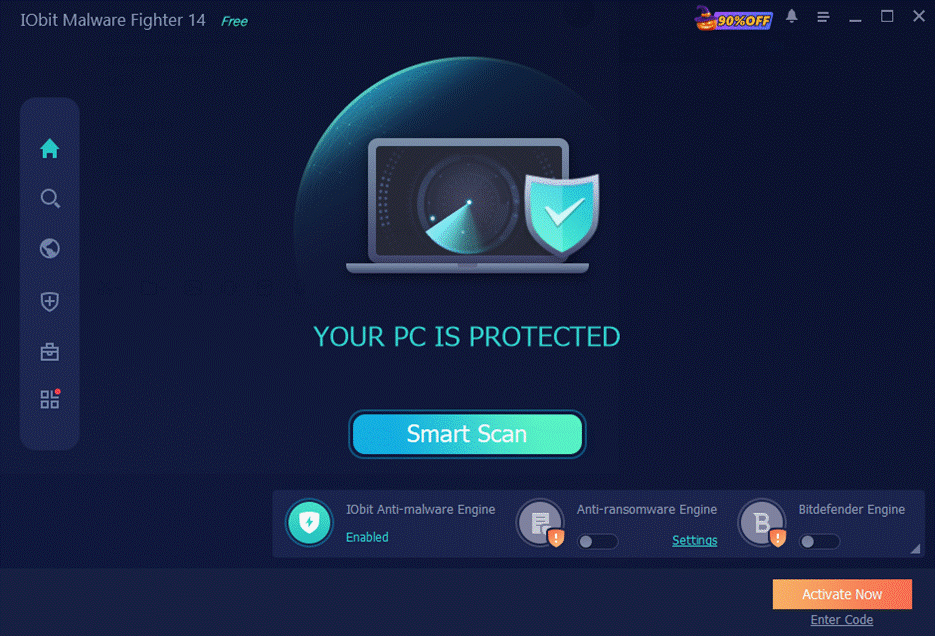
I rely on IObit Malware Fighter 14 to help protect my Windows PC from common threats. It uses several security layers to monitor activity and block web threats in real time. When needed, I can run a quick scan or a deeper system scan to look for potential threats. Its background protection works quietly while I use my PC, including:
A. Protection While I Browse
I keep browser protection enabled to help guard my PC against unsafe websites, harmful downloads, and suspicious activity. It can detect and block potential threats while I browse in the following ways.
- Malicious websites: IObit Malware Fighter 14 checks websites against its threat database and Google Safe Browsing. It can identify known dangerous websites before they load. If a website is marked as unsafe, it blocks the connection and displays a warning.
- Phishing attempts: Phishing websites often imitate trusted sites. They may use fake login pages to steal my passwords and personal details. IObit Malware Fighter 14 checks websites for suspicious activity and can alert me to unsafe links or fake pages.
- Suspicious links: IObit Malware Fighter 14 checks links before you open them. It can scan links on search pages and social media for potential threats. If a link starts an unsafe download, the Download Protection feature can stop the file before it reaches your PC.
- Unsafe web pages: Some websites may carry harmful scripts, unwanted ads, or hidden crypto miners. IObit Malware Fighter 14 helps block these potential threats as I browse. Its Ads Removal feature can also reduce unwanted ads and pop-up windows that may lead to unsafe sites.
- AI-driven threats & malicious scripts: With the new AI Script Guard feature, IObit Malware Fighter 14 provides advanced real-time protection against potential security threats and malicious scripts generated or leveraged by AI agents, securing my browser against automated exploits.
- Browser-related threats: Some malware can change browser settings, search engines, or stored data. IObit Malware Fighter 14 helps protect these areas. Its Homepage Advisor can help prevent unwanted changes to your homepage and search settings. Network Guard and DNS Protection can help block harmful redirects. Browser Password Guard also helps protect saved browser passwords from theft.
B. Protection When I Download Files
Unknown files can sometimes carry malware. Here’s how I keep download protection active to help identify and stop unsafe files before they can affect my system.
- Downloaded installers: I only get installers from trusted developer websites. I verify the SHA-256 checksum and digital signature before opening an installer. I also select Custom Installation to avoid extra software. For unfamiliar installers, I test them safely in a virtual machine.
- Email attachments: I check the sender’s full email address before opening any attachment. I keep Office macros disabled and use cloud previews when possible. I watch for unusual file names, especially double extensions like document.pdf.exe. I avoid opening unexpected attachments that pressure me to act quickly and verify them first.
- Suspicious files: I scan unknown files with VirusTotal before I open them. I also show file extensions so I can notice unusual or misleading file types. I keep suspicious files in an isolated folder until I can verify them. I avoid opening files that I cannot verify and delete them instead. EDR protection gives my PC an extra layer of security.
- Why automatic checking reduces manual work: Automatic security checks save time and effort. They can scan large numbers of files quickly and handle huge amounts of data without getting tired. Real-time cloud databases help detect new threats faster. Automatic blocking also reduces mistakes caused by human error. Security teams can then focus on important alerts instead of checking every event manually.
C. Protection Against Suspicious Behavior
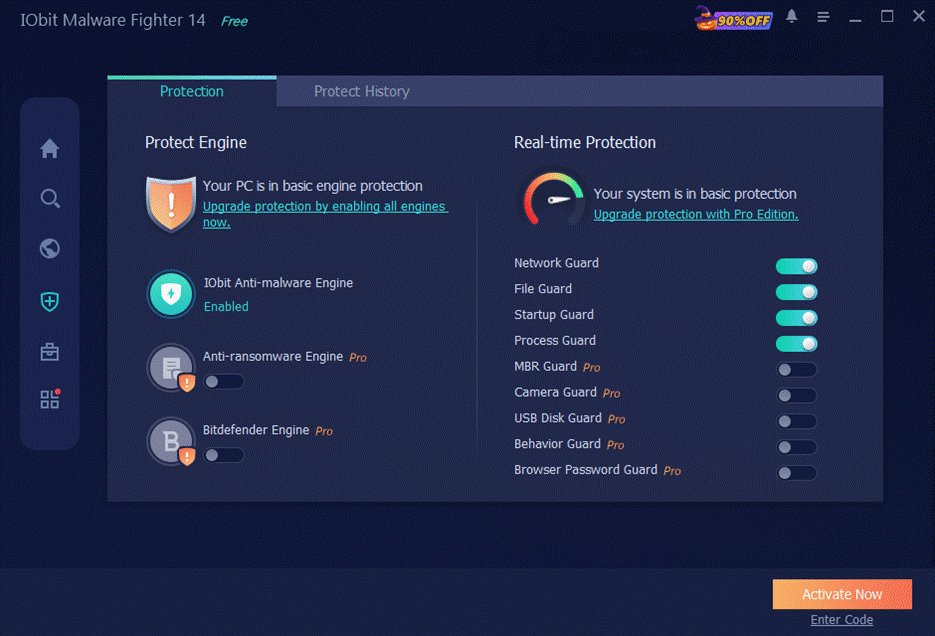
Finding suspicious activity early can help prevent new attacks. Zero-day attacks and changing malware can sometimes escape traditional detection. Behavioral monitoring looks at what programs do and flags suspicious actions. This helps detect threats even when no known signature is available.
Furthermore, with the introduction of AI Script Guard, the software actively analyzes and intercepts suspicious automated script behaviors in real time, defending the system against potential emerging threats from autonomous AI agents.
Early detection can limit damage and reduce the time attackers remain inside a system. It can also reveal unusual activity from compromised accounts or insiders. Behavioral detection can identify changing attack patterns and respond before new security updates are released
Step-by-Step Guide: How I Use IObit Malware Fighter 14 for Daily Protection
Step 1: Download it from the official product page.

Step 2: I use Smart Scan for quick checks or Deep Scan for a more thorough check. I check detected threats and follow the recommended action.
Step 3: I launch IObit Malware Fighter 14 before going online. I keep the Real-Time Protection active to monitor threats in the background.
Step 4: I turn on Surfing Protection to detect unsafe websites, malicious scripts, and links. I enable Ads Removal to reduce unwanted ads and pop-ups. I use Browser Protection to protect browser settings and block potential threats.
Step 5: Finally, I keep the software updated. Updated threat information helps improve detection of newer risks.
The Other Security Settings I Automate
I automate several security settings to make protection easier to manage. The following routine helps me handle updates, scans, backups, and other routine tasks automatically.
1. Windows Updates
I make Windows updates part of my regular security routine. Security patches fix system vulnerabilities and help protect my PC from attacks. Automatic updates install important fixes without requiring regular manual checks.
I open Settings > Windows Update and make sure automatic updates are enabled. I also set my Active Hours so Windows avoids restarting while I am working. When available, I enable updates for other Microsoft products to keep my software up to date. This helps close security gaps with minimal effort.
2. Security Software Updates
IObit Malware Fighter 14 stays updated and running as part of my security routine. I keep real-time protection on because disabling it could leave my system exposed. Malware can download quietly, change browser settings, or encrypt files before I notice. Keeping protection enabled helps lower these risks.
I use Silent Mode or Game Mode to limit unwanted notifications. I keep notifications focused on important security alerts. I keep the main protection features active and check the alert history later.
3. Browser Updates
Another simple step in my hands-off security routine is keeping my browser updated. I install browser updates as they become available. They help fix security flaws and protect my online information and accounts.
I enable automatic updates whenever possible so security fixes install without constant manual checks. I also make manual update checks when required. Keeping my browser updated helps address security weaknesses and reduce online risks.
4. Firewall Protection
Another important layer in my hands-off security routine is firewall protection. y firewall stays enabled to monitor my PC’s network connections. It blocks unauthorized traffic and helps control incoming and outgoing activity. IObit Malware Fighter scans files and programs, while the firewall provides network protection.
I rely on layered protection because one security tool cannot block every threat. If malware gets past one layer, the firewall can help block its network connection. I leave Windows Firewall turned on for public and private networks and check alerts from new apps.
Conclusion
I follow a hands-off cybersecurity routine to stay protected with less manual effort. I keep Windows and security software updated, use firewall protection, and leave real-time monitoring enabled. I also rely on IObit Malware Fighter for free antimalware protection—including cutting-edge features like AI Script Guard for real-time defense against AI agent threats—during everyday PC use. These simple steps work together to reduce risks while I browse, download files, and use my PC, giving me reliable protection with less effort.
FAQs
- Q1. Does a hands-off routine mean I can ignore cybersecurity completely?
No. Automation reduces routine work, but I still need to review important alerts, install updates, and follow safe browsing and downloading habits. - Q2. Why should I update security databases automatically?
Automatic updates help security software recognize newer threats without requiring me to update the database manually. - Q3. What is the benefit of a layered security approach?
Different tools protect different areas. Combining updates, firewall protection, antimalware software (including script and behavior guards), browser security, and safe habits gives me broader protection.